
Instant help is now part of CH Dispatch Support chat.
Ask a question, get clear instructions and open the full Help Center article. Need a person? Continue in the same conversation.
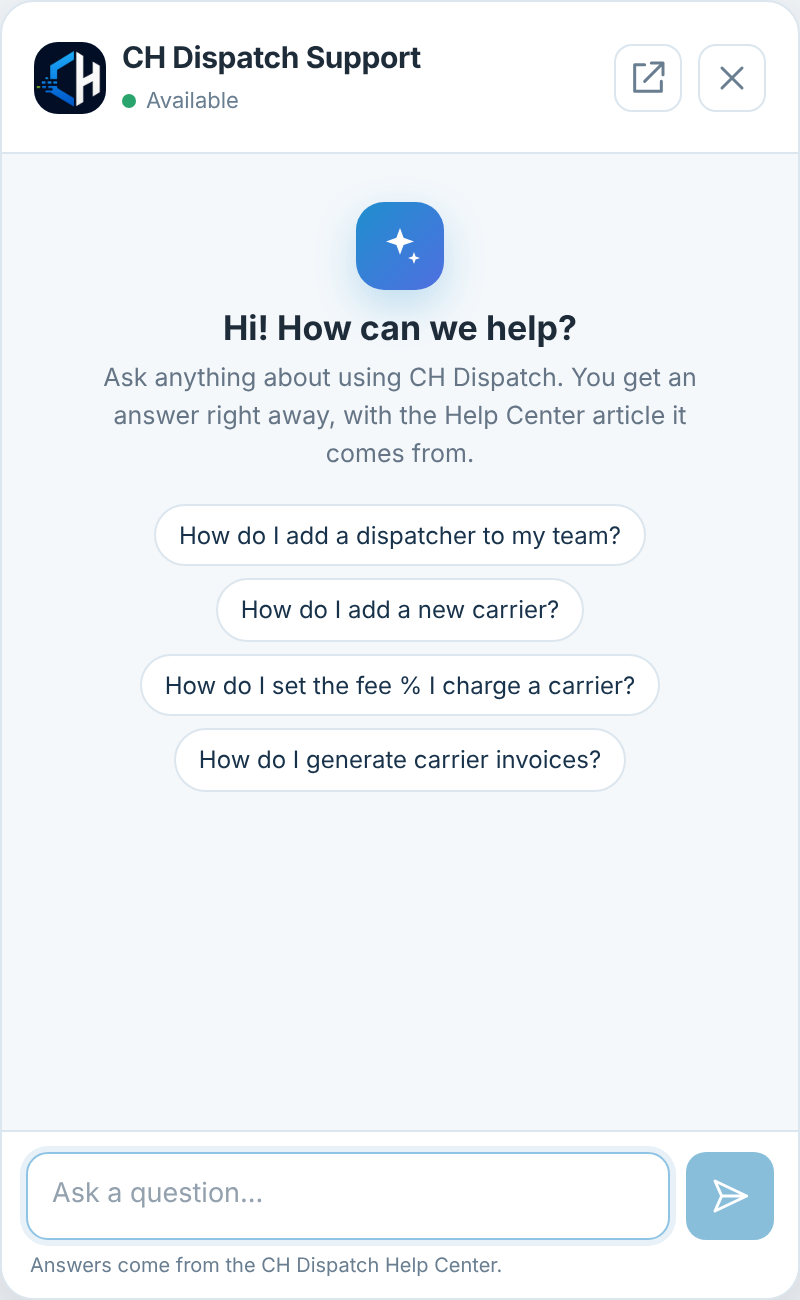
CH Dispatch now includes a help assistant inside Support chat. It provides automated answers around the clock, with step-by-step instructions and a link to the Help Center article behind the answer. When you need a person, choose Talk to a live agent and continue with the team in the same chat.
Open Support chat and ask in your own words
Use Support chat when you need a quick answer while working in the platform. Open it from the CH Dispatch menu and type the task you want help with. You can also start with one of the suggested questions.
- Open CH Dispatch. Sign in to your account and choose Support chat from the menu.
- Ask about the task. Describe what you want to do, such as adding a dispatcher or uploading a POD.
- Follow the answer. Review the instructions and open the linked Help Center article for the full explanation.
- Ask for a person if needed. Select Talk to a live agent to continue in the same chat.
Practical questions for the work in front of you
The assistant is designed for questions about using CH Dispatch. Examples include:
- How do I add a dispatcher to my team?
- How do I add a new carrier?
- How do I upload a POD?
- How do I set the fee percentage I charge a carrier?
- How do I generate carrier invoices?
- What does this load status mean?
For a connected view of those tasks, explore the full demo walkthrough or the dispatcher pay and invoice guide.
An answer with a source you can open
Each answer is grounded in the CH Dispatch Help Center and links to the article it comes from. That gives you a short answer for the immediate task and a route to the full instructions when you need more detail.
Review the guidance against the screen and permissions available in your account. If the answer does not resolve the question, use the live-agent option rather than guessing at a change to your operational records.
A person can take over in the same chat
Some questions need an account-specific discussion or a team member's help. Tap Talk to a live agent and the team takes it from there in the same conversation.
The automated assistant is available 24/7. Human response times depend on team availability.
Try it the next time a question comes up
If you already use CH Dispatch, open Support chat from the platform menu and ask about the task you are working on.
If you are exploring the software, the carrier management guide explains how the workspace connects clients and loads. You can also request a 30-day trial and try the operational workflow after our team confirms activation.
Questions about this workflow
Where do I find the CH Dispatch help assistant?
Sign in to CH Dispatch and open Support chat from the menu. Type your question or select one of the suggested questions.
Is automated support available 24/7?
Yes. The help assistant provides automated answers around the clock. Human responses depend on team availability.
Where do its answers come from?
The assistant uses the CH Dispatch Help Center and includes a link to the full article behind the answer.
Can I talk to a real person?
Yes. Select Talk to a live agent to continue with the team in the same chat conversation.
Already using CH Dispatch?
Open Support chat from the platform menu and ask your next question.