
Manage multiple carrier clients with CH Dispatch.
Keep the work for each carrier connected, from the truck assigned to a load to the documents and dispatcher earnings that follow it.
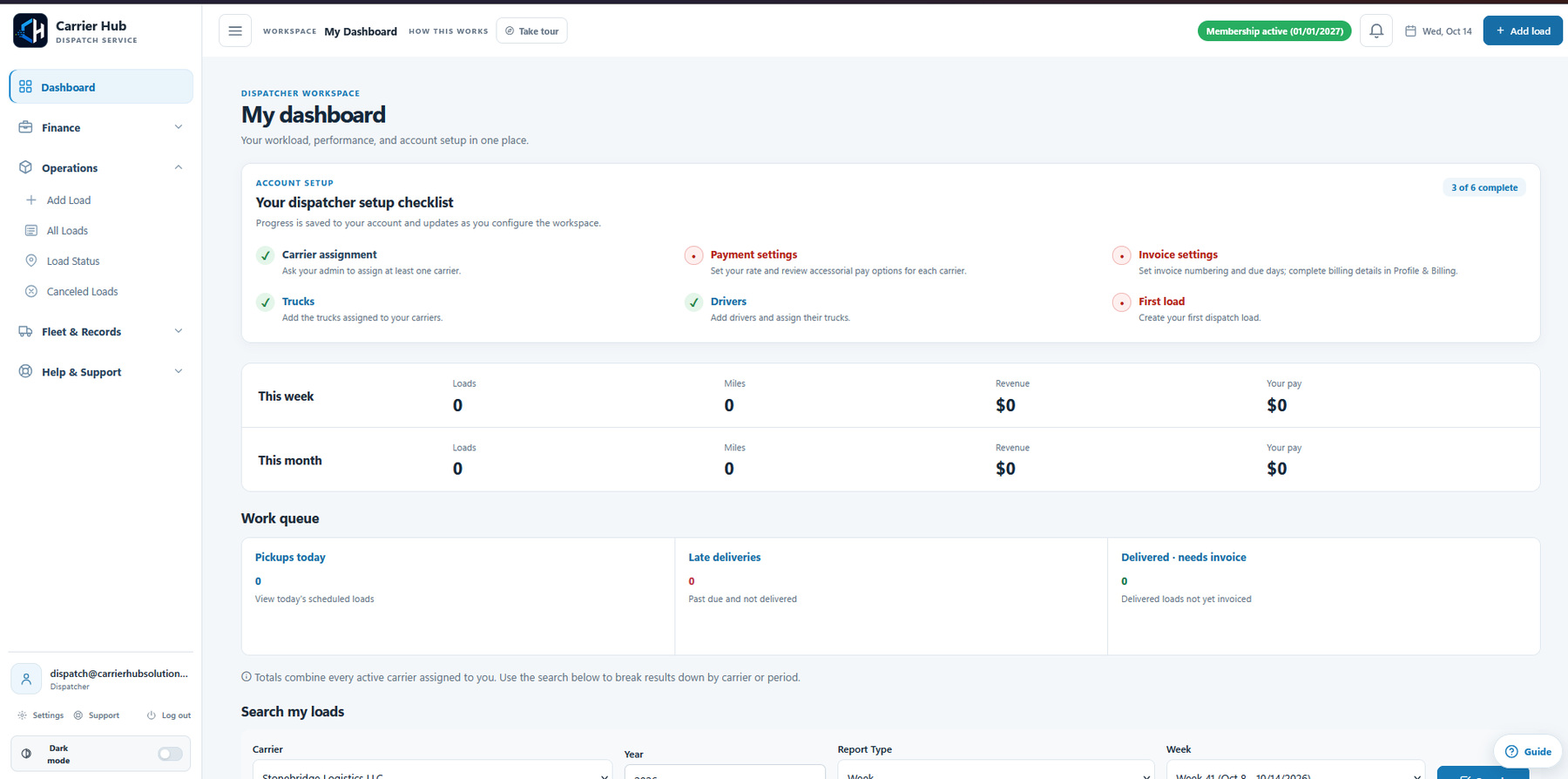
CH Dispatch is dispatch software for independent dispatchers and dispatch companies working with multiple carrier clients. It connects carrier records with drivers, trucks, loads, delivery paperwork and dispatcher pay, so the next step starts from the same operational records.
Start with the right carrier
When you dispatch for several businesses, every load needs the correct carrier, equipment, driver and payment arrangement. A company name in a spreadsheet is only one part of that record.
In CH Dispatch, choose the carrier before working the load and connect it to the appropriate truck and driver. Keep carrier contact details and pay settings current. Access to a carrier depends on your account permissions and assignments.
- Check which carrier is responsible for the load.
- Confirm the truck and driver before saving the assignment.
- Review the carrier's configured dispatcher fee or pay arrangement.
For a working dispatcher's example, read Durim Qazimi's move from Excel, folders and separate PDF tools to CH Dispatch.
Follow each load from entry to delivery
- Enter and review the load. Add the pickup, delivery, broker, rate, mileage and references manually. Where included in your plan, upload a RateCon and review the AI-extracted details before saving.
- Keep the assignment current. Connect the load to the carrier, driver and truck. Use load-assignment emails when you want to send the details to the driver.
- Update the operational status. Record the load's progress as the trip moves from pickup through delivery.
- Attach the paperwork. Keep the RateCon, BOL and POD with the relevant load so you can review the document packet later.
The full CH Dispatch demo walkthrough follows this sequence with sample loads.
Keep each carrier's invoices and pay records together
Different carrier clients may have different dispatcher pay arrangements. Use the appropriate carrier and pickup-date range when reviewing earnings in Invoices and My Pay. Check the pay base and effective rate for each load before generating an invoice or statement.
A generated PDF is a record of the amount due. Review the saved document before using the separate email action. It does not send or transfer money automatically.
Driver settlements are a separate workflow: they use the selected driver's pay method, included loads and any statement adjustments. Read the dispatcher pay and carrier invoice guide for a worked example.
Choose a plan around the operation you manage
Carrier capacity, team capacity, AI extraction and other included features depend on the plan and account configuration. Compare the current CH Dispatch plans rather than assuming every option has identical limits.
The 30-day trial is a practical way to review your workflow. Submit the request with your contact details and first carrier client's information. Our team reviews it and emails your login details, a guide and the confirmed trial dates.
If you run your own fleet rather than a dispatch business serving carrier clients, explore managing a trucking company with Carrier Hub NEXT.
Questions about this workflow
Can CH Dispatch manage more than one carrier client?
Yes. CH Dispatch is designed for independent dispatchers and dispatch companies working with carrier clients. The number of carriers and team members available depends on your selected plan and account permissions.
Can different carriers have different dispatcher pay settings?
Yes. CH Dispatch supports carrier-specific pay settings. Choose the correct carrier and pay period, then review the load-level calculation before creating the invoice or statement.
Does generating a dispatcher invoice email it automatically?
No. Generating the PDF and emailing the saved document are separate actions. Review the document before sending it.
Is CH Dispatch the same as a trucking company's TMS?
CH Dispatch focuses on dispatch businesses managing carrier clients. Carrier Hub NEXT is the fleet TMS for a trucking company's own dispatch, fleet records, settlements, invoicing, expenses and reporting.
Try the workflow for your dispatch business.
Request the trial and our team will email your login details, guide and confirmed dates.