
Move your dispatch business beyond spreadsheets.
Start with one carrier and a small set of active loads. Check the operational and pay workflow before changing how the whole team works.
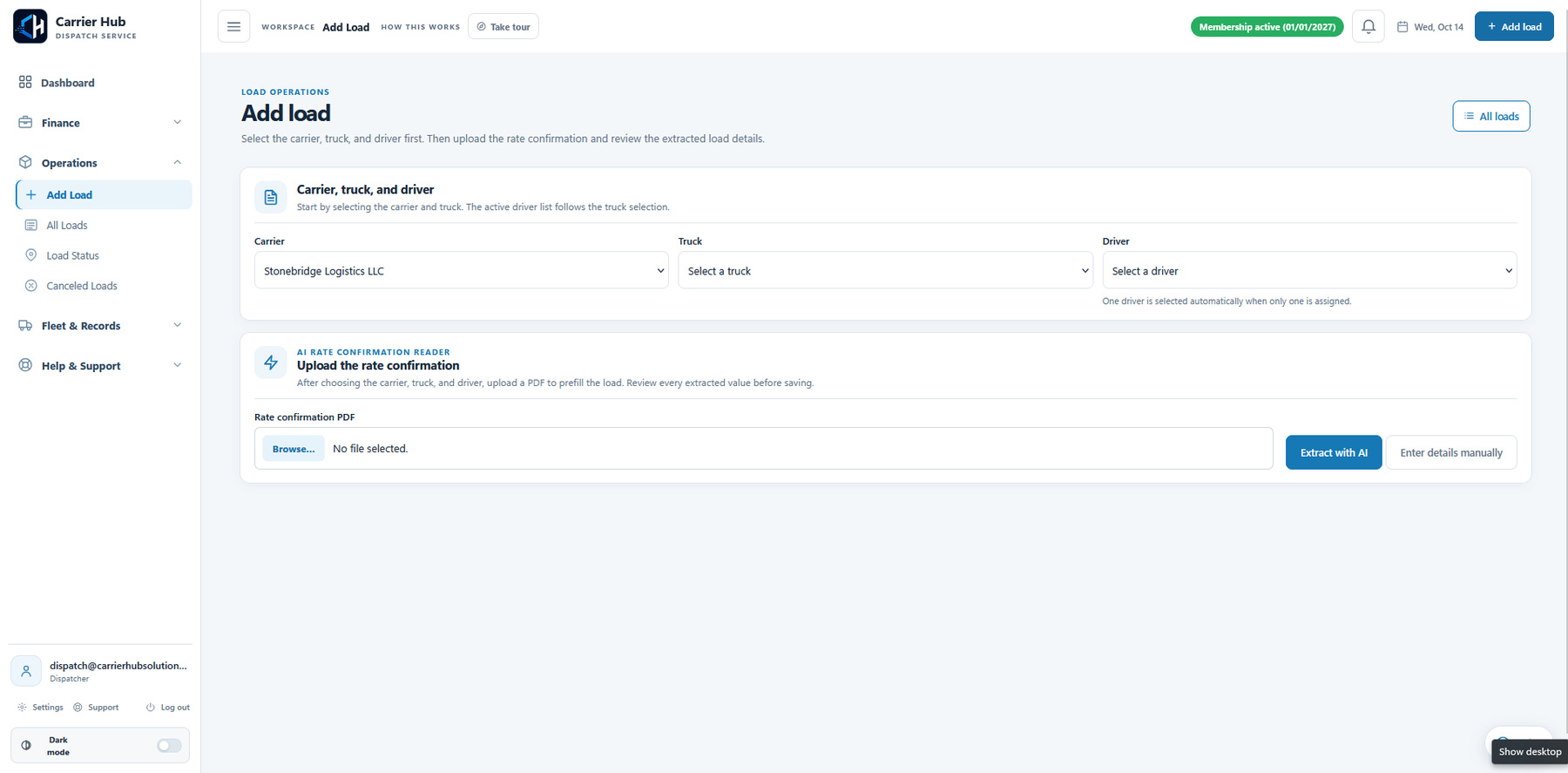
Moving from Excel to dispatch software is a workflow change, not just a file transfer. CH Dispatch connects carrier clients, drivers, trucks, loads, delivery documents and dispatcher pay. Start with accurate records, confirm pay settings, and test a complete load-to-document workflow before expanding the rollout.
Identify where the spreadsheet process becomes difficult
A spreadsheet can work well as a simple list. The pressure often comes when a load's details, supporting documents, status changes and pay calculation are managed in different places.
Review your current process with the team. Which file is the current load list? Where are BOLs and PODs stored? Who checks dispatcher earnings, and which pay arrangement applies to each carrier? Use those answers to decide what the new workspace needs to support.
For a dispatch company, the key is keeping work organized by carrier client. For your own trucking fleet, read the separate Carrier Hub NEXT company-management guide.
For a working dispatcher's example, read Durim Qazimi's move from Excel, folders and separate PDF tools to CH Dispatch.
Clean up the information you will use first
- Carrier clients: confirm the business and contact details you will use.
- Drivers and equipment: check names, truck information and the correct carrier relationship.
- Pay arrangements: confirm the carrier's dispatcher fee and the relevant driver pay method.
- Active loads: gather dates, locations, rates, references and the current status.
- Documents: identify the RateCon and any BOL/POD files for the loads you will test.
Keep a copy of the original spreadsheet and supporting records. Agree which system the team will use for new work so the same load is not maintained independently in two places.
Test one complete workflow in CH Dispatch
- Request the 30-day trial. Our team reviews the request and confirms your login details and trial dates by email.
- Configure the first carrier. Add the relevant records and check pay settings before working the loads.
- Enter a small set of loads. Use manual entry or eligible AI RateCon extraction, and review the saved details.
- Update status and attach documents. Follow the load through delivery and keep the correct BOL/POD with it.
- Review the pay documents. Compare the preview and generated PDF with your expected figures before sending anything.
The full demo's written walkthrough shows the sequence with sample data.
Confirm imports and migration before making promises to the team
This guide describes how to organize and test the transition. It does not promise a one-click Excel import or automatic migration of your historical records. Ask the team to confirm the supported import formats, available assistance and any migration scope before planning a large transfer.
Decide which records need to be active in the platform now and which older records can remain in your retained archive. Confirm your record-retention and handover responsibilities before removing any original files.
Give the team a clear way to work and get help
Agree who enters loads, updates their status, checks documents and reviews the pay figures. Use the platform permissions appropriate to each person's responsibilities.
For a task-specific question, use the in-platform help assistant. It can provide step-by-step Help Center guidance, and you can select Talk to a live agent for a person in the same chat.
Once the pilot works for your business, extend the workflow to additional carrier clients within your plan's capacity. Compare the current plans and confirm any account requirements with the team.
Questions about this workflow
Can I try CH Dispatch before moving my whole operation?
Yes. Request a 30-day trial and use a small set of carrier and load records to review the workflow. The team confirms activation and trial dates by email.
Does this guide include an automatic Excel import?
No. It explains how to plan and test the transition. Confirm supported imports and any migration assistance with the team before assuming historical spreadsheets can be transferred automatically.
Can I still enter loads manually?
Yes. The demo shows manual load entry as well as AI RateCon extraction where included. Review the information before saving in either workflow.
What should I test before changing the whole team's process?
Test carrier and driver setup, load entry, status updates, delivery documents, pay previews and saved PDFs. Confirm responsibilities and check the results against your expected figures.
Try the workflow for your dispatch business.
Request the trial and our team will email your login details, guide and confirmed dates.